The integration between Playground and My Food Program means you only have to enter data in one system, and it syncs with the other. See what data you should enter in each software.
My Food Program continues to be your comprehensive, and customizable software for managing the full CACFP. Click here for our full list of features, settings and reports.
HOW TO GET STARTED
Gather Account Details and Confirm Settings in My Food Program
Login to your My Food Program account and generate an API Key. This key will grant the same level of access as the user. Visit our Help Center article for step-by-step instructions.
Be sure that the Do Not Allow Meal Counts To Be Imported From Outside Software is not checked in “Attendance & Meal Count Settings”. Please note that only Sponsors can enable this function, so if you participate under a CACFP Sponsor, you will need to contact them.
Setup Integration in Playground
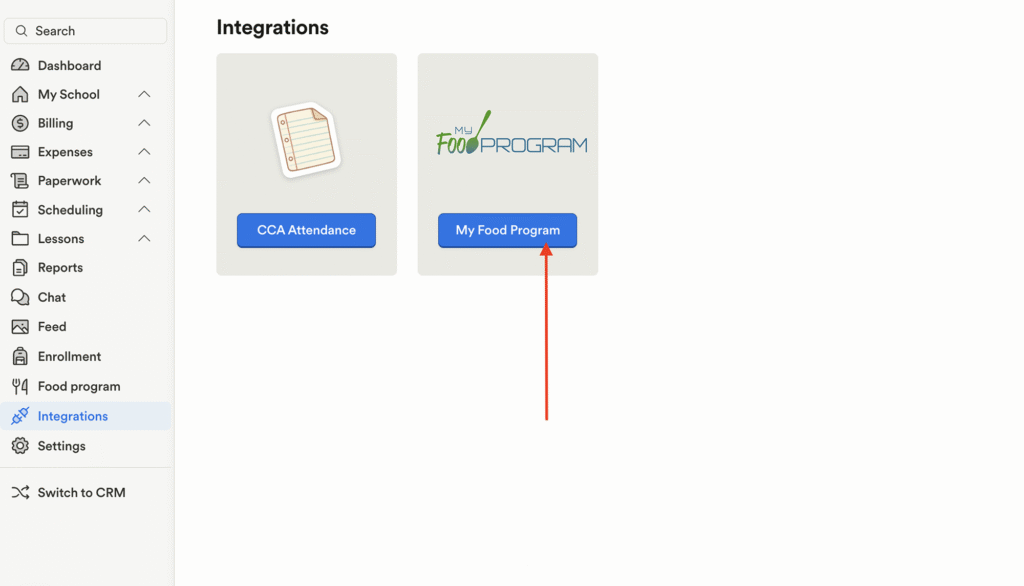
In Playground, go to Settings → Integrations → My Food Program.
Enter your API Key and siteID, then click Connect.
Integration is Ready
Once connected, the integration will automatically sync menus, attendance, and meal data.
Send Meal Counts & Attendance Data to My Food Program
Once your API Key and siteId are connected in Playground, you can export your daily attendance and meal count data directly to My Food Program.
In Playground, go to Integrations tab and click on My Food Program.
Scroll to the section labeled Export from Playground to My Food Program.
Playground will export all attendance and all meal data recorded for that date.
Select the date you want to send data for.
Click Export.
Your data is sent to My Food Program. You can log into the My food program platform to review it.
Import Options from My Food Program
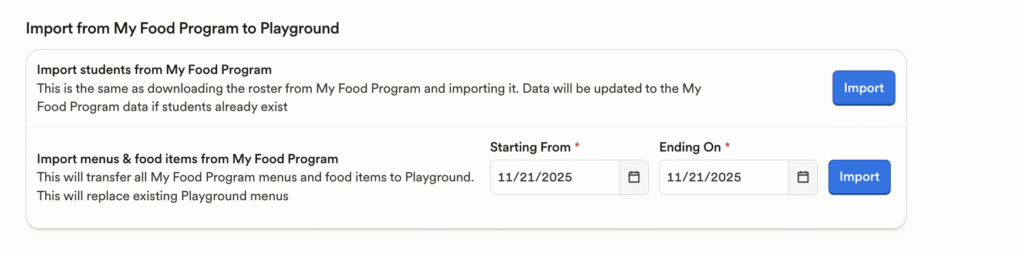
Import Students from My Food Program
This option lets you pull your student roster from My Food Program straight into Playground.
How it works:
Go to the Integrations Tab and click on My Food Program.
Under Import students from My Food Program, click Import.
Playground will download your student list from My Food Program.
If any students already exist in Playground, their information will be updated based on the data in My Food Program.
Import Menus and Food Items from My Food Program
This option transfers all menus and food items you’ve created in My Food Program over to Playground.
How it works:
Go to the Integrations Tab and click on My Food Program.
Choose the date range you want to import using Starting From and Ending On.
Click Import.
Playground will pull all menus and food items within that date range from My Food Program.
Your current Playground menus will be replaced with the imported My Food Program menus.
HOW IT WORKS
Build menus in My Food Program.
Import menus into Playground with one click.
Record attendance and meals served in Playground (using Eating Posts).
Send meal counts and attendance data back to My Food Program for monthly CACFP reporting.
SUPPORT
Experiencing issues connecting your accounts or syncing data?
Confirm your API Key and Sponsor ID are correct.
Ensure your My Food Program account is active and linked to your Playground location.